how to remove gemini logo from image
How to Remove Gemini Logo From Image | Logo Remover
A visible Gemini logo can make polished AI artwork look unfinished and immediately signal AI generation. When the mark sits in one corner of an image, the task is usually a focused cleanup rather than a full redesign. This guide explains how to identify the logo, prepare the original file, review the corner after processing, and keep the cleaned copy organized for the layout where it will be used.

Confirm that the mark is the Gemini logo
Start by opening the image at a useful viewing size and looking at the expected corner. A small four-pointed sparkle or logo is a different task from a creator signature, a large text overlay, or a logo repeated across the canvas. Identifying the mark first prevents you from using a corner-focused workflow on an image that needs manual editing.
The image should also be worth preserving. If you have both a screenshot and the original Gemini download, choose the original. It keeps the source dimensions and avoids extra interface pixels, scaling, and compression around the logo.
- Check the corner at 100% or a similar full-size view.
- Distinguish the Gemini logo from unrelated overlays.
- Prefer the original PNG, JPG, or WebP download.
- Keep the source file before starting a cleanup.
Use the image mode for a focused logo cleanup
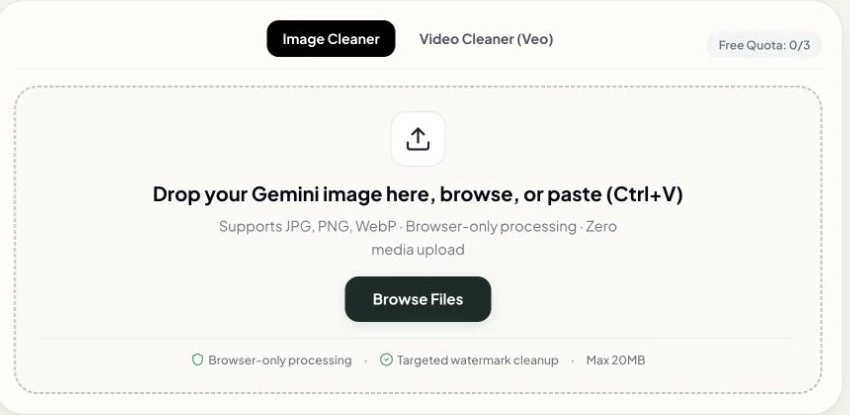
Open the Gemini watermark remover and stay on the image tab. Add the original PNG, JPG, or WebP file using the file picker, drag-and-drop area, or paste workflow. The browser then targets the visible corner area and shows a cleaned preview without asking you to redraw the whole image.
The important step is the comparison after processing. Check the former logo position beside the original, then inspect nearby texture such as sky, fabric, foliage, or a product edge. Save the output as a separate file when the corner looks suitable for the intended design.
Review the corner for texture and edge changes
A corner logo can overlap a simple gradient, a detailed background, or the edge of the subject. Each background makes a change easier or harder to notice. Look for a repeated patch, a sharp boundary, an unexpected blur, or a color transition that does not continue naturally into the surrounding pixels.
Review the image twice. First, inspect the source-size result so you can see small details. Then place the cleaned copy into the real presentation, thumbnail, mockup, or product layout. The final crop and display size determine whether a remaining edge will be visible to other people.
Prepare a clean logo copy for the destination layout
Use a filename that preserves the relationship between the original and cleaned versions, such as `project-scene-clean.webp`. Store the original separately instead of overwriting it. This makes it possible to compare versions, retry with a better source, or return to the untouched image during a later edit.
Before delivery, confirm that the destination app accepts the exported format and that the image still has the expected dimensions. Canva, Figma, slide software, and ecommerce tools can apply their own resizing or compression, so check the final placement once more after import.
- Use a clear cleaned-copy filename.
- Keep the original and output in separate folders.
- Confirm dimensions after export.
- Inspect the image after it enters the final layout.
When a Gemini logo remover is not enough
A corner logo remover is appropriate when the visible Gemini mark is small, fixed, and located in the expected area. It is a poor fit for a large overlay, several unrelated watermarks, a moving logo, or damage spread across the image. Those cases need a manual editor or a workflow that lets you define a larger region.
Clear boundaries make the result easier to judge. If the image does not match the expected pattern, preserve the original and choose a tool that gives you control over the actual damaged area instead of repeating an unsuitable corner cleanup.
Try the Gemini Watermark Remover
Remove the visible Gemini watermark from an image or video in your browser and download a cleaned copy.
Open the Cleaner